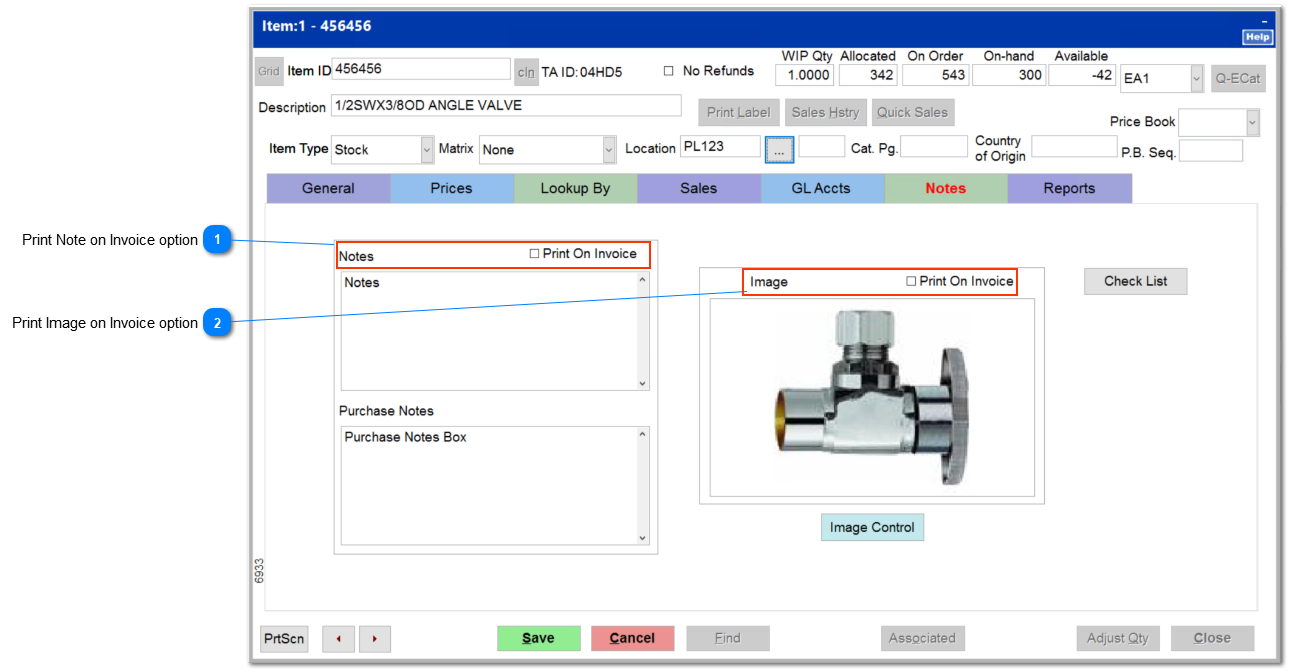
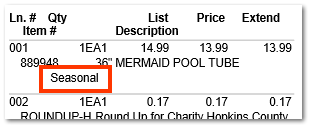
Within the Notes area, the user may enter text information regarding the item which may be printed on the invoice if the "Print on Invoice" option is checked. If you have the Rental module, you can use the Notes area as a list of to dos for a service ticket.
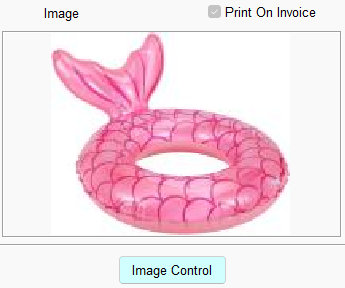
Selecting the "Image Control" button allows the user to attach an image to the item record. The "Image Control" button opens a navigation pane which allows navigation to the image file. Below are examples of invoices with the item notes and image displayed.
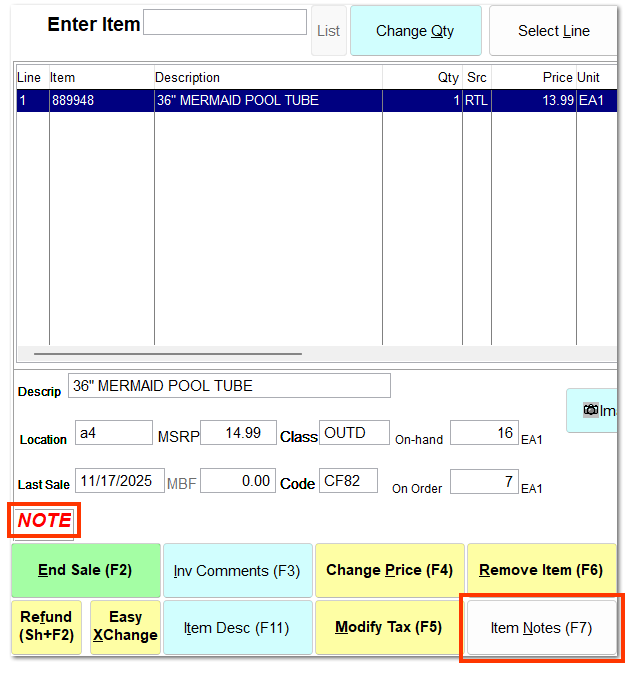
 NotesYou can enter additional notes regarding the item. At Ring Sale, the presence of a note is indicated below the Item Listing. You can click Item Notes (F7) to view the note.
Check Print on Invoice to print the note on the invoice below the item description.
|
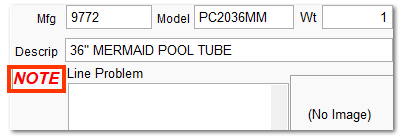
 Purchase NotesYou can enter additional notes regarding purchase of the item. On the Detail tab of a purchase order, the presence of a note is indicated within the item details. You can click Item Notes (F7) to view the note.
|
 Item ImageYou can manually enter an image of the item by clicking Image Control and locating the correct image on your computer. Check Print on Invoice to print the image with the invoice.
| | Vendor supplied images do not appear on the Notes tab; they must be manually loaded. Consequently, vendor supplied images cannot be printed on invoices unless manually loaded into the inventory file.
|
|
 Check ListYou can add this item to a check list for use in service tickets by clicking Check List and selecting the check list to which you wish to add this item.
|