Checking Out
Alternative information for Rental Version 2 is presented in blue boxes.
|
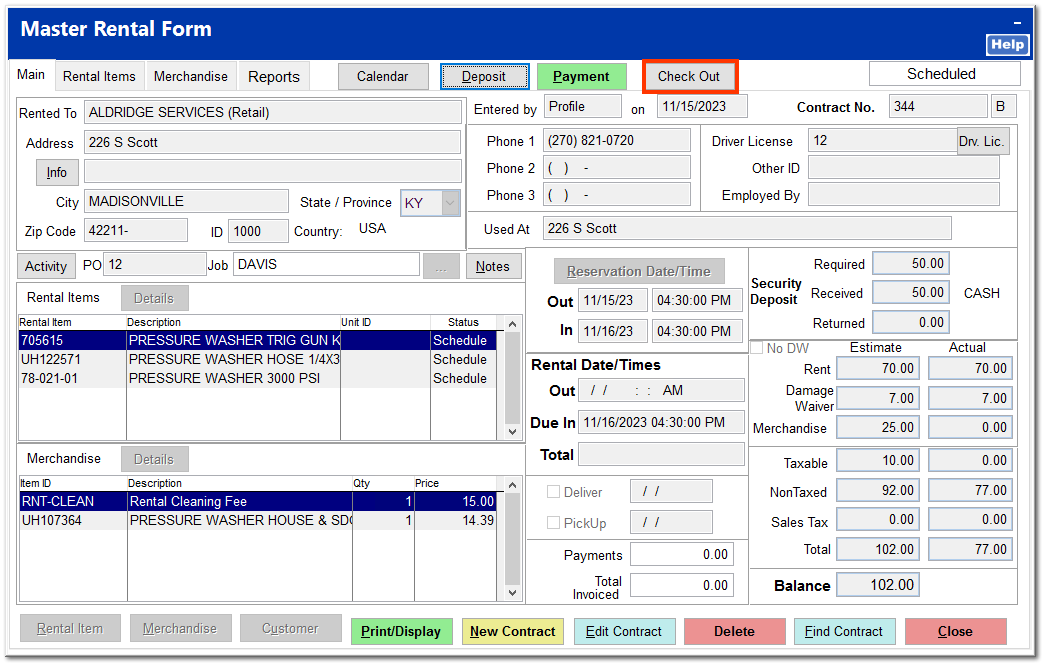
A rental item can be checked out immediately upon creation of the rental contract or at a later time. If the rental item is to be checked out immediately, clicking Check Out in Step 5 of the rental wizard opens the Check Out screen. Otherwise, you can open the contract and check out at any time.
If a deposit is required on the rental item, it should be received prior to checking out. Click Deposit to receive a deposit.
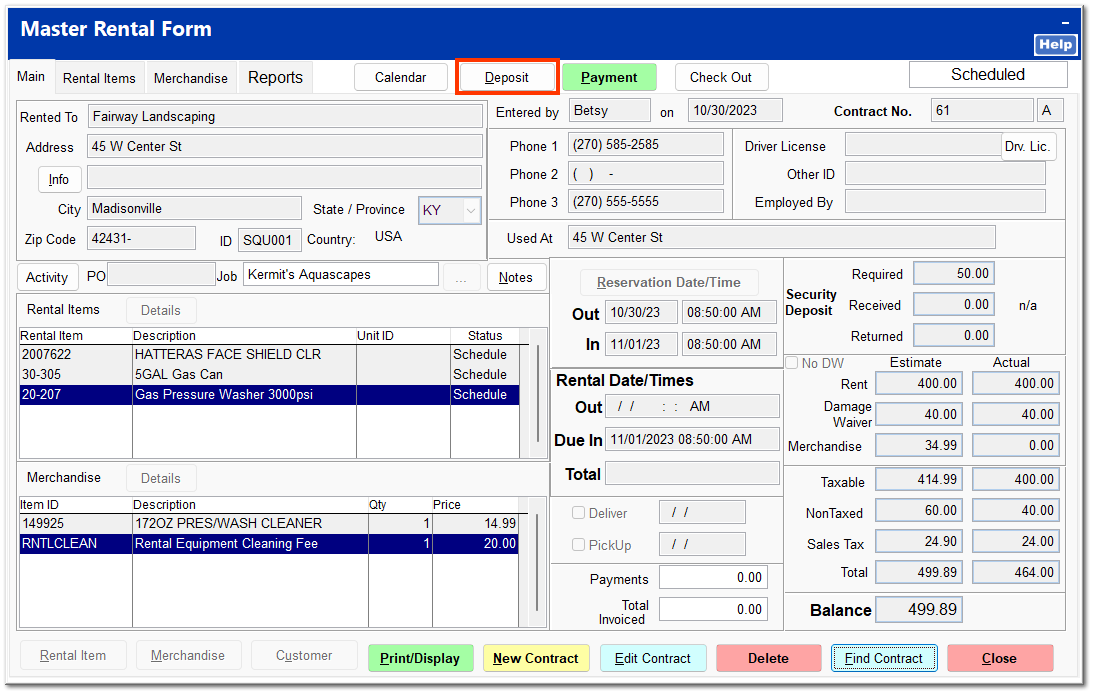
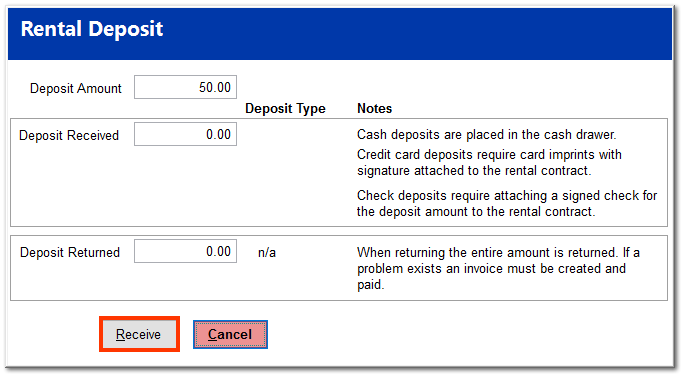
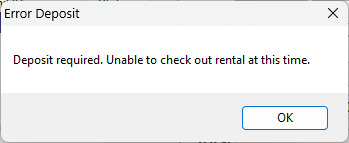
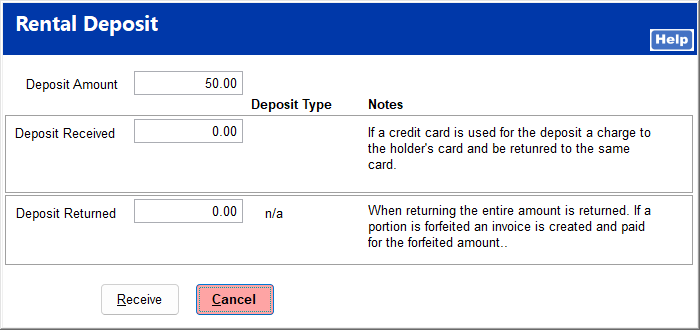
Ver. 2 requires the deposit to be received prior to checking out. The following prompt opens upon clicking Check Out in Step 5 of the Rental Wizard or clicking Check Out on a scheduled contract. Clicking OK on the prompt immediately opens the Rental Deposit screen.
 Click Receive to accept the deposit.
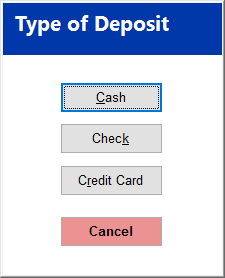
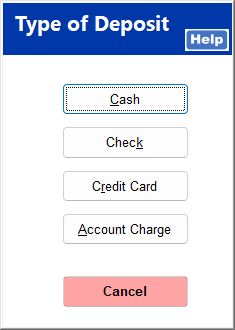
 Click on the deposit method.
 |
Click Check Out to proceed to the check out process.
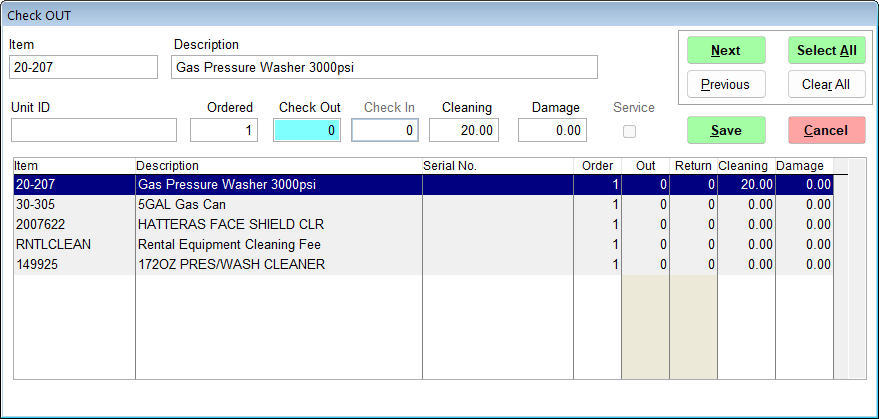
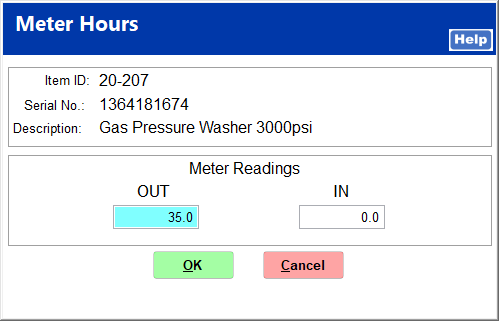
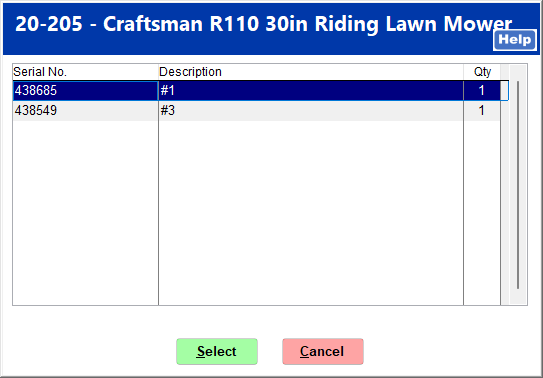
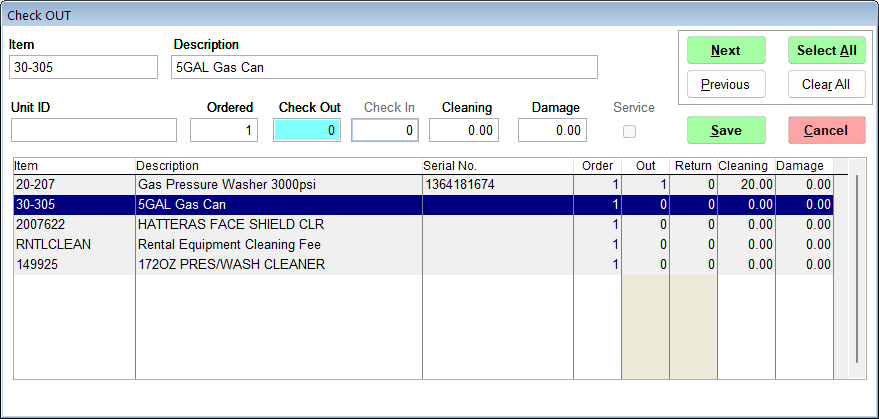
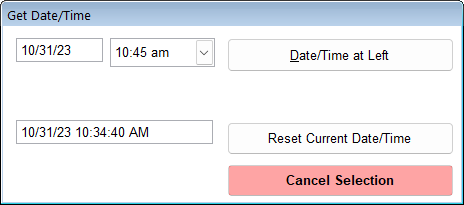
If Get Rental Signature is turned on and you have a Verifone Card Reader from us, the unit will prompt for the customer's signature.
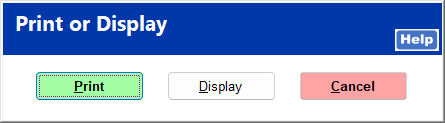
The Print or Display screen opens, from which you can choose to print or display the rental contract. The rental contract is formatted to print on pre-printed rental agreement forms. For more information on pre-printed forms, see Rental Agreement Forms. Clicking Cancel allows you to proceed.
On printing or displaying the contract, the signature will appear in the bottom left hand corner.
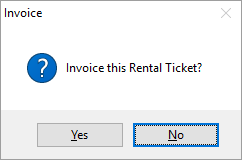
You are prompted to invoice the rental ticket. Click Yes to proceed.
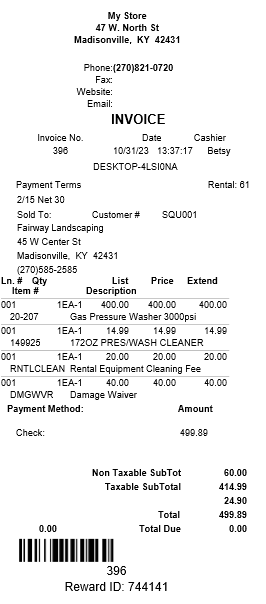
Ver. 2 proceeds directly from the contract Print or Display screen to the payment screen.
|
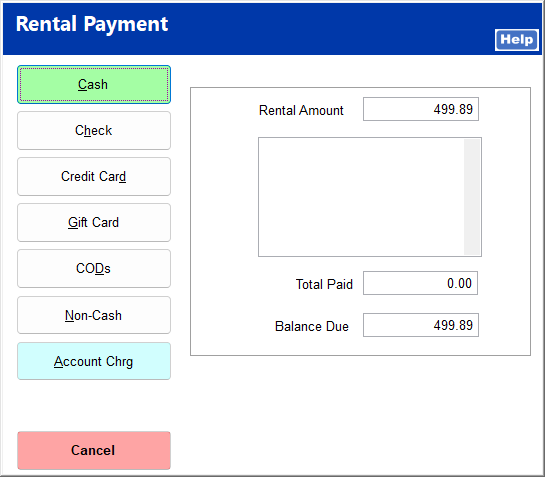
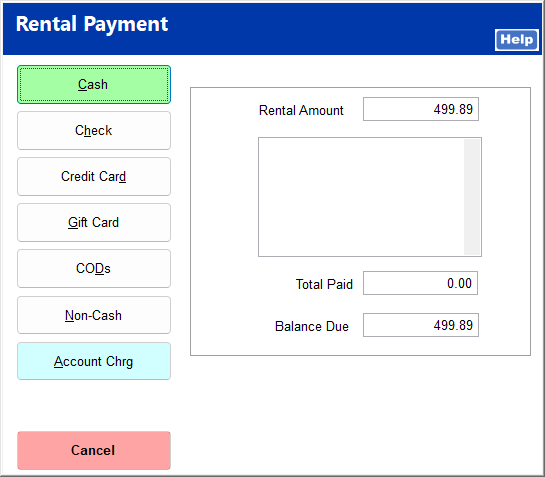
Click on the payment type, and enter any additional information required. If a credit card is used as the payment type, the customer is given the option to store the credit card information for future use on this rental contract. For more information on stored credit cards, see Storing a Credit Card.
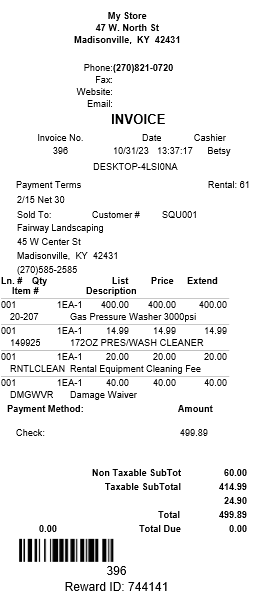
An invoice prints detailing the payment received.
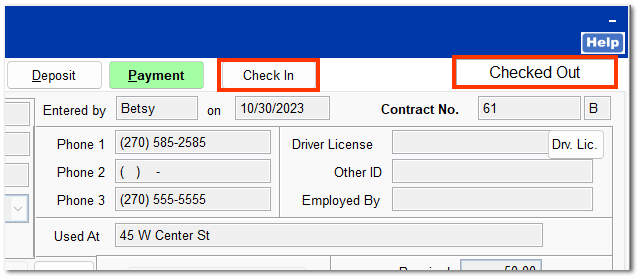
Once the check out process is complete, the contract status changes to Checked Out, and the Check Out button becomes a Check In button to be used when the rental item is returned.