×
Menu
Index

Sequence of event to manage Multi-Store Retail Prices

Sequence of event to manage Multi-Store Retail Prices
1

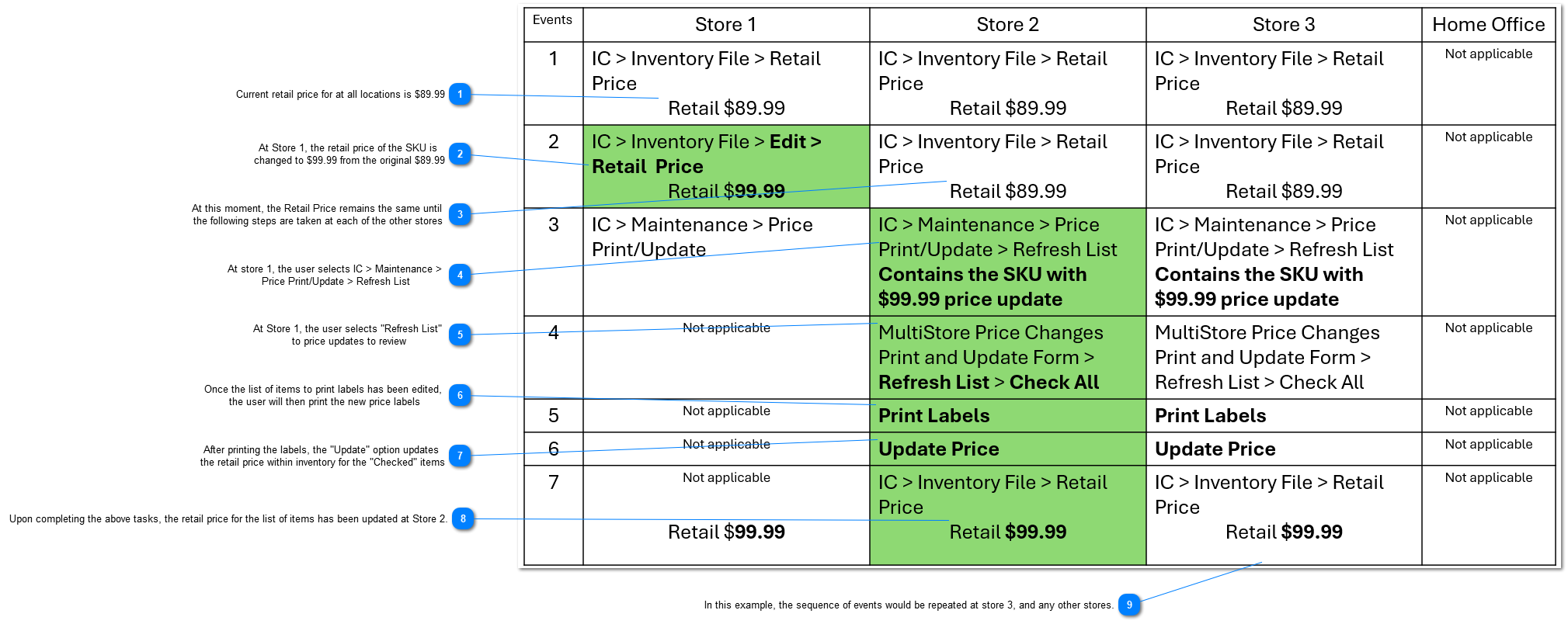
Current retail price for at all locations is $89.99

1. Current retail price for at all locations is $89.99
2

At Store 1, the retail price of the SKU is
changed to $99.99 from the original $89.99

2. At Store 1, the retail price of the SKU is 
changed to $99.99 from the original $89.99
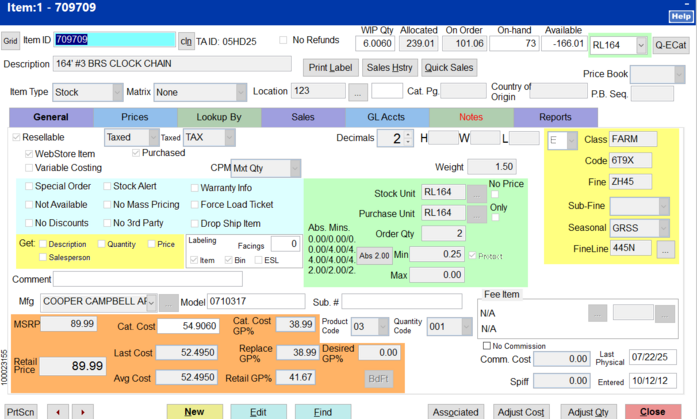
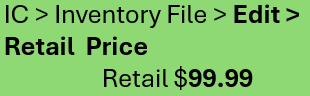
At this store the user, select IC > Inventory File > located the SKU > selected Edit and then changed the retail price to $99.99.  Upon selecting Save, the system automatically sends the a price change via the Multi-Store application to all other stores within the Multi-Store locations.
3

At this moment, the Retail Price remains the same until
the following steps are taken at each of the other stores

3. At this moment, the Retail Price remains the same until 
the following steps are taken at each of the other stores
When Store 1 saves the described retail price change, the retail price change is not automatically changed at the other locations.
4

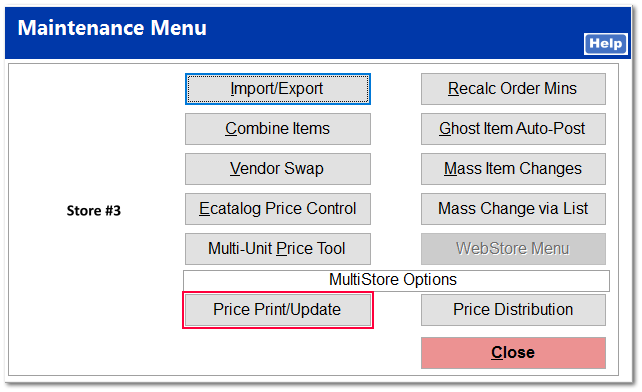
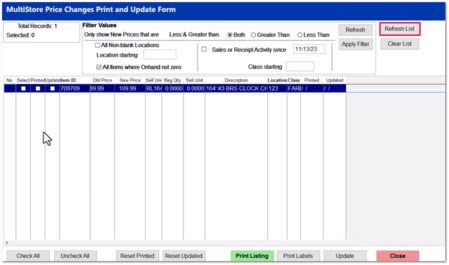
At store 1, the user selects IC > Maintenance >
Price Print/Update > Refresh List

4. At store 1, the user selects IC > Maintenance > 
Price Print/Update > Refresh List
Upon selecting the Refresh List, the system presents to the user the list of items that has received an updated retail price.
Sequence of event to manage Multi-Store Retail Prices
 
 
5

At Store 1, the user selects "Refresh List"
to price updates to review

5. At Store 1, the user selects "Refresh List" 
to price updates to review
Sequence of event to manage Multi-Store Retail Prices
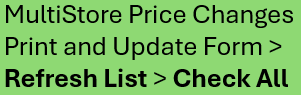
The Check All places a check in the "Select" column of check boxes indicating that all the items will have the following action taken: Print Labels or Update (retail prices in inventory).
If an item or items should not have it's retail price updated or a label printed, simply uncheck the Select column checkbox.

6

Once the list of items to print labels has been edited,
the user will then print the new price labels

6. Once the list of items to print labels has been edited, 
the user will then print the new price labels
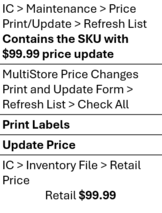
The Print Label button will print the desired label form to the destination printer for the checked "Select" items.
7

After printing the labels, the "Update" option updates
the retail price within inventory for the "Checked" items

7. After printing the labels, the "Update" option updates 
the retail price within inventory for the "Checked" items
The Update Price button updates the retail price of the checked "Select" items.
8

Upon completing the above tasks, the retail price for the list of items has been updated at Store 2.

8. Upon completing the above tasks, the retail price for the list of items has been updated at Store 2.
 
9

In this example, the sequence of events would be repeated at store 3, and any other stores.

9. In this example, the sequence of events would be repeated at store 3, and any other stores.