(c) Profile Systems Design Group, Inc. 2025 Build: 4.008.805 Help ID: 6826
If you do not see the expected content,press CTRL + F5 to clear your Browser's cache.
What if the "Set Item ID" was not Checked - How to fix the problem.
Changing the Item ID
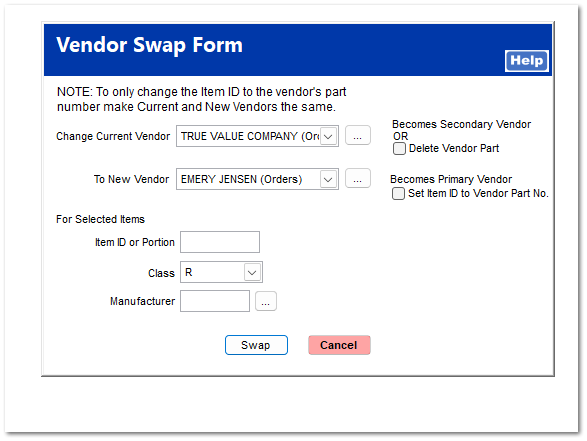
Depending upon the users intent, selecting to Not change the Item ID to that of the Primary Vendor be exactly what the user wanted to do. In other cases, the user just missed checking the option to change the Item ID.
In either case, the following example explains how to have the system change the Item ID of the SKU and then print a new label that reflects the Item ID change.
If the "Set Item ID to Vendor Part No. " was not selected to replace the current Item ID with that of the new Primary Vendor, the Vendor Swap Utility will address this issue!
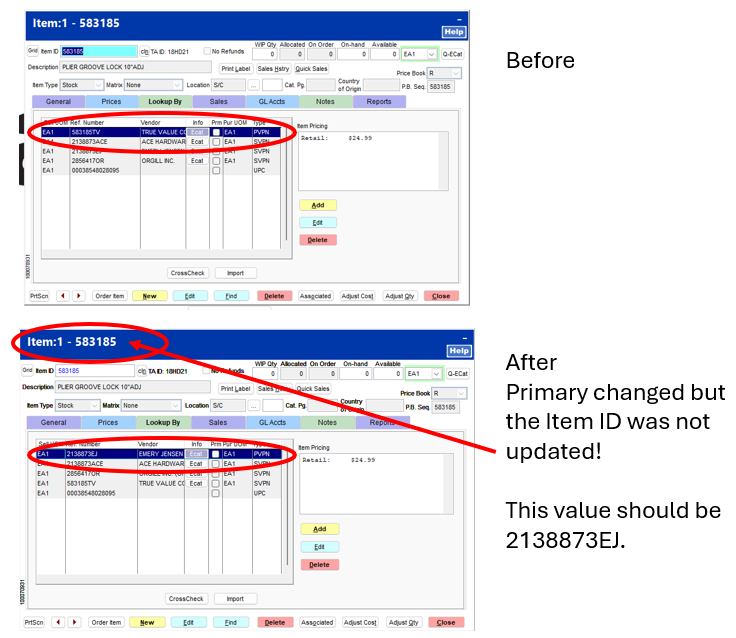
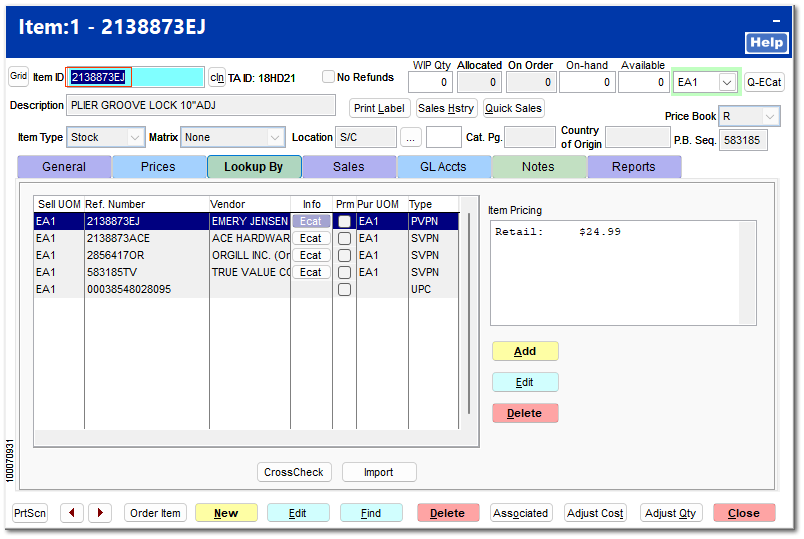
Since the "Set Item ID to Vendor Part No." was not selected, the General tab > Item ID was not changed to that of the Primary Vendor.
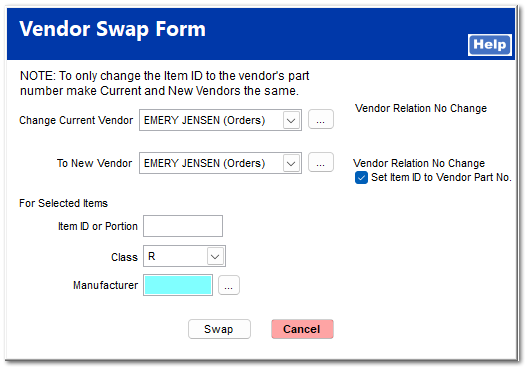
To replace the current Item ID with the Primary Vendor's Part Number, select the following settings when rerunning the Vendor Swap utility.
Change Current Vendor: EMERY JENSEN
To New Vendor: EMERY JENSEN
Vendor Relation: No Change
Check "Set Item ID to Vendor Part No."
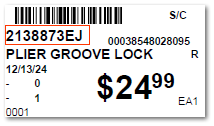
Since there is a change in the Item ID of the SKU, the system will prompt the user print the revised label since the Item ID is presented on the label.
Choose the appropriate Label Form ID and Label Printer and then select Print to print the replacement revised labels.
An example of a revised label is presented below and the related update of the Item ID from the General tab is presented below.