Updated catalog file from Orgill. What do you do with it?
You have requested from Orgill a completely new catalog containing all the current process of their catalog.
How do you initiate this request for current prices of all Orgill products?
Send an email to edi@orgill.com indicating your contact information to include the store's Orgill account number to request a complete catalog with the current retail prices of all products.
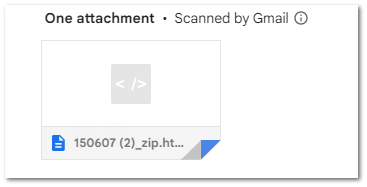
You should receive an email confirming your request and then another email including the file attachment of the requested file as shown below.
How do you import the new catalog file received from Orgill?
Extract the File
Once you receive the email containing the update catalog file, the file needs to be first unzipped to a folder that is accessible by the server.
Clicking on the attachment within your email received from Orgill should then result in a download option as seen below.
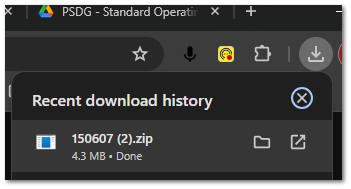
Selecting the Download icon, should result in download activity within your browser.
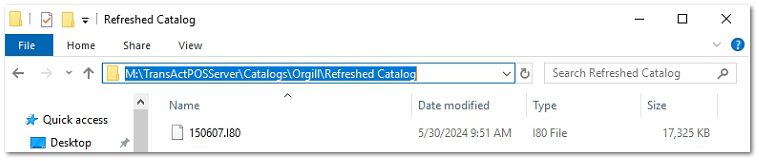
Select the Folder icon to open the folder containing the downloaded file and then extract and place the file in a folder that is accessible by the server.
| | Note: the filename extension will be "I80" (letter i + 80)
|
Process the New Catalog File
Next proceed to TransActPOS and then go to the following menu:
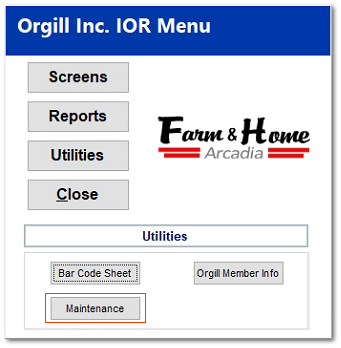
Select Options > IOR Menu > Orgill > Utilities
Choose Maintenance
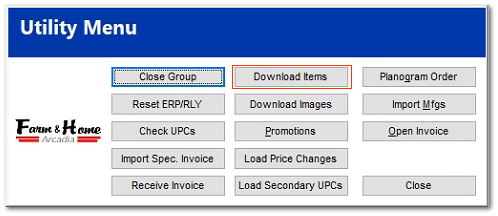
Select Download Items
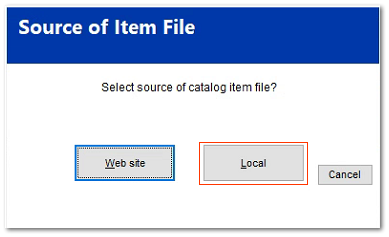
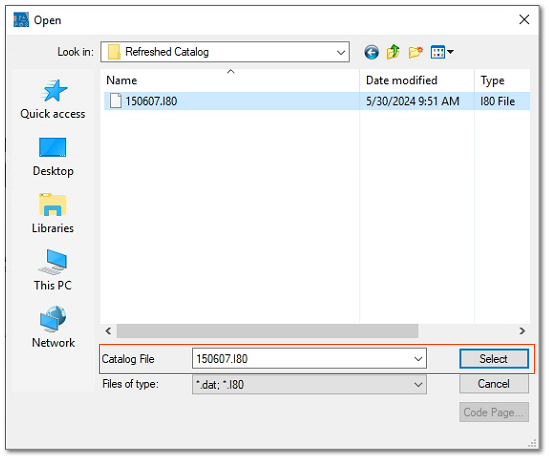
Select Local and then select the folder containing the newly downloaded catalog file that was previously placed in the TransActPOSServer folder in the above step.
Once the file is located, select the "Select" button to begin the import refreshed data into the Orgill electronic catalog.
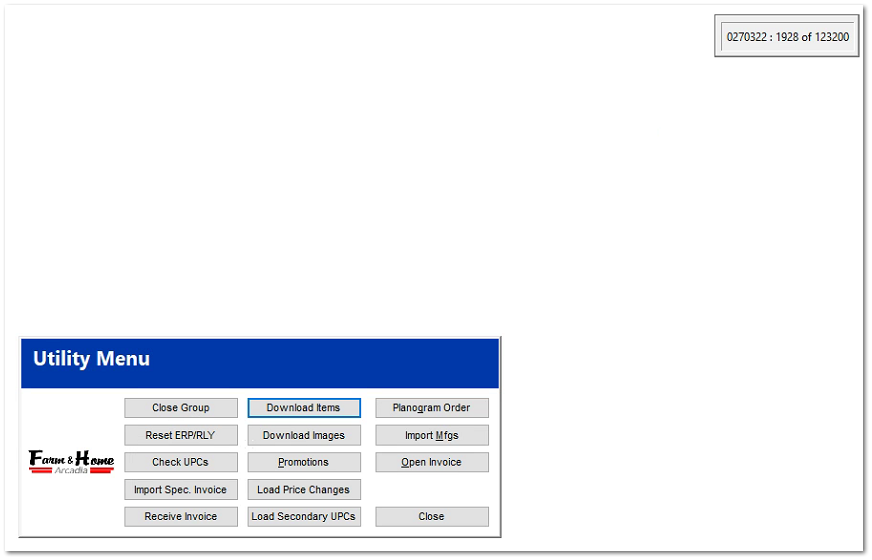
During the import process the system will present the progress of download in the top right of the screen.
When completed, the system simply returns to the Utility Menu.
Continue on with
Ecatalog Price Control to update your store's retail prices based upon the refreshed catalog information located into the Orgill Electronic Catalog.