(c) Profile Systems Design Group, Inc. 2026 Build: 4.008.811 Help ID: 8012
If you do not see the expected content,press CTRL + F5 to clear your Browser's cache.
Creating a Kit
A kit item is created similarly to any other new item, and then component items are attached to the kit item.
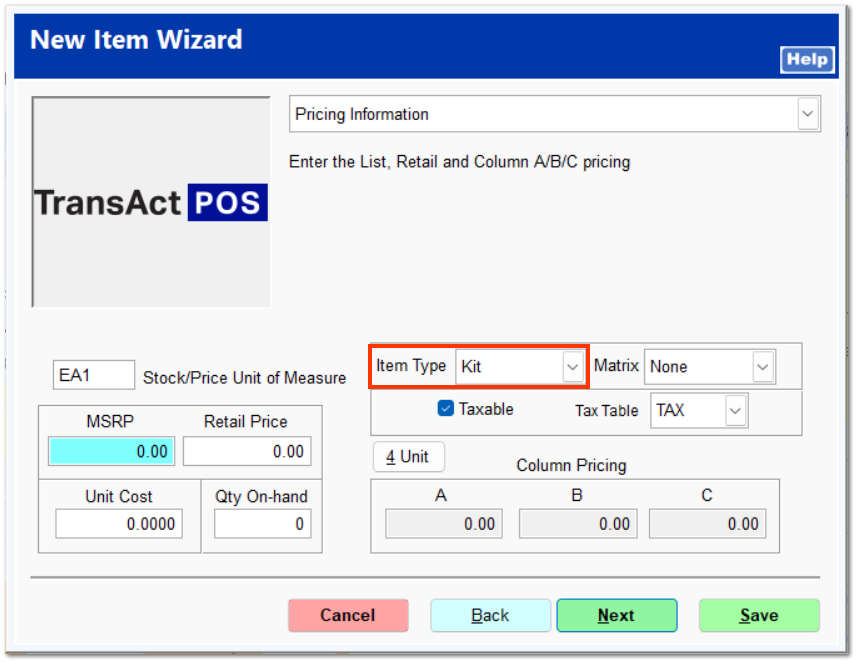
To create a kit item, begin by opening Inventory File and clicking New. This opens the New Item Wizard. Enter the item ID and item description. Enter the appropriate information on each tab, being sure to select Kit as the item type on the Pricing Information screen.
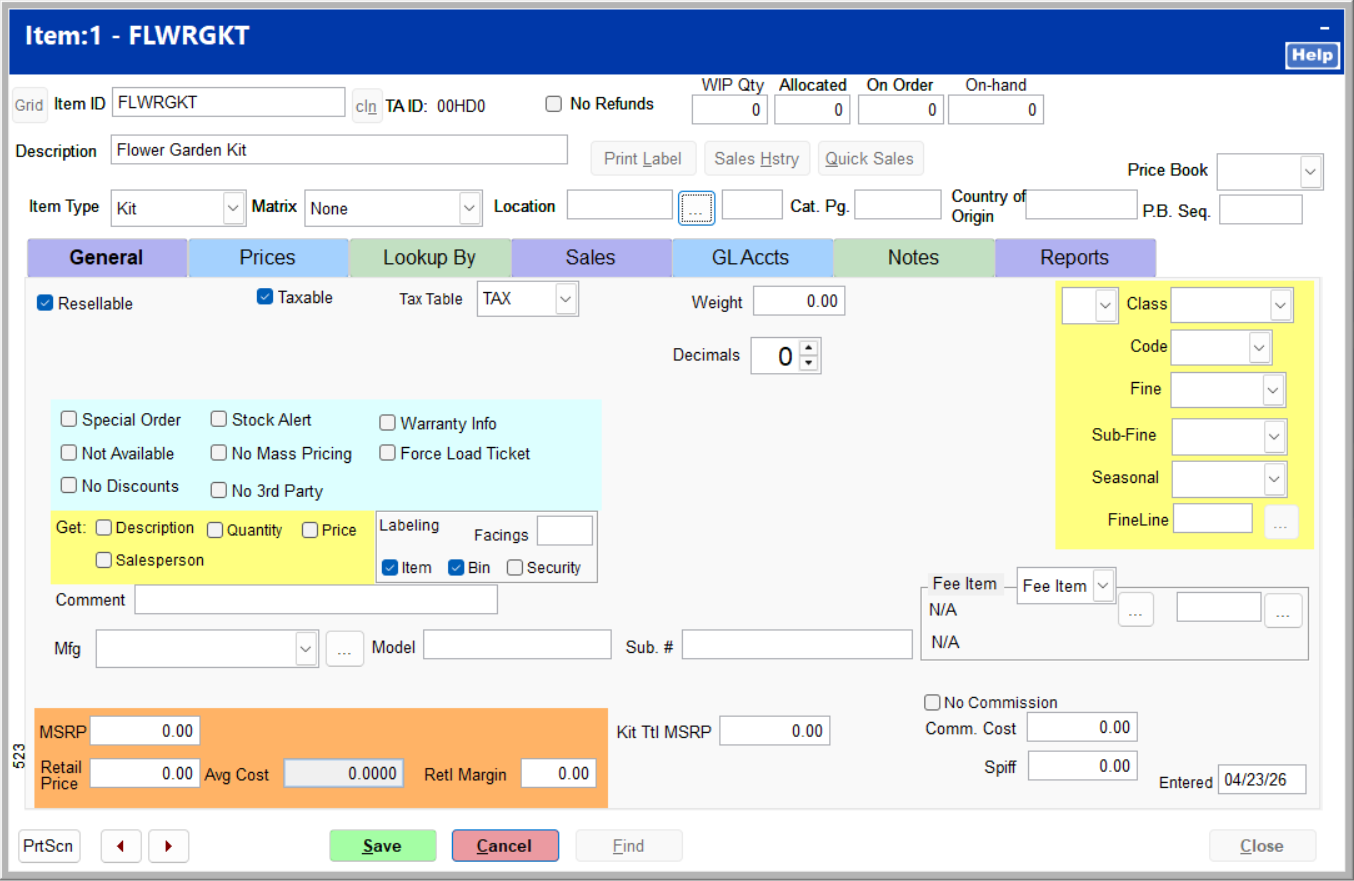
At any point, you can click Save and then Save again to exit the wizard and return to the item inventory file.
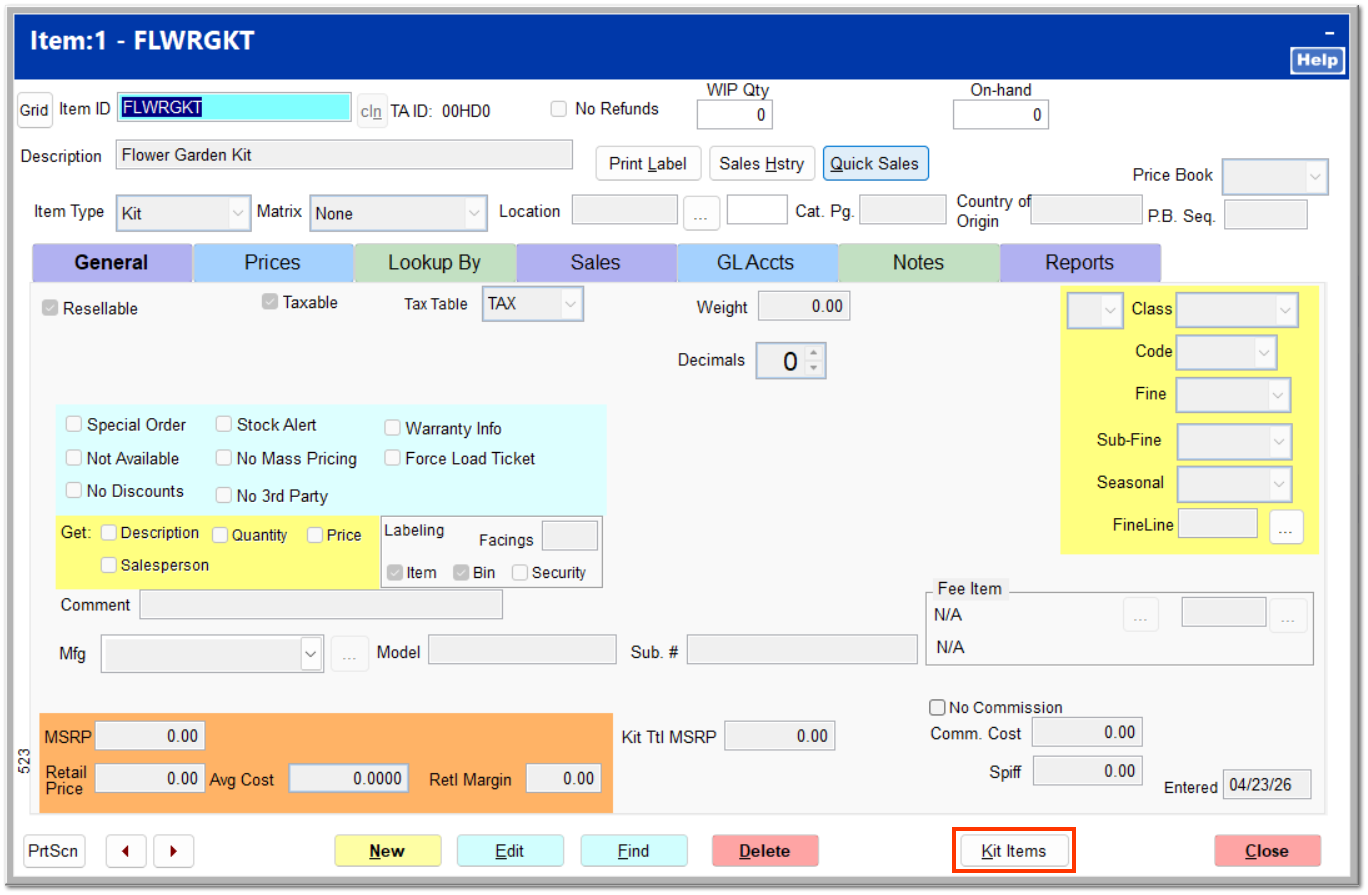
If the Kit Items button does not appear upon saving the item, exit the item's inventory file and reenter it.
Upon clicking Save, the Kit Items button should become available.
Kit Detail
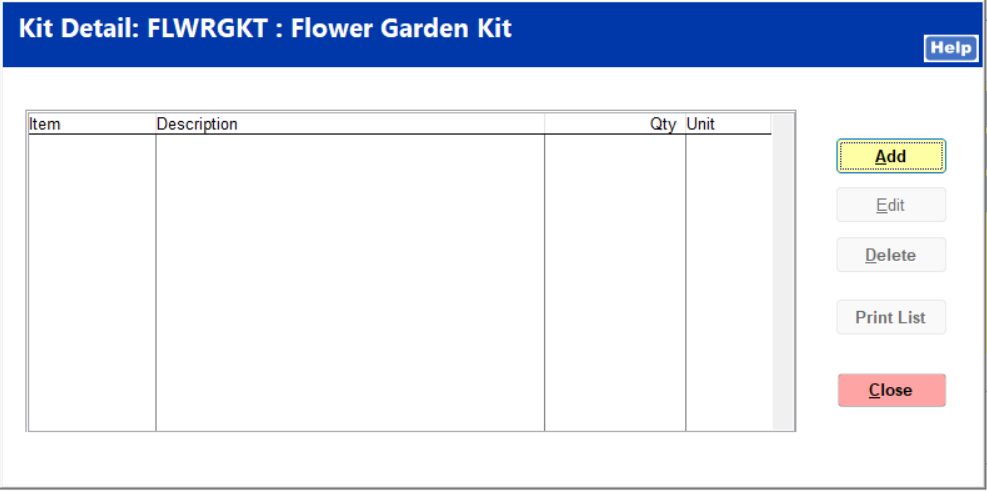
Clicking Kit Items opens the Kit Detail screen. Click Add to add a component item to the kit.
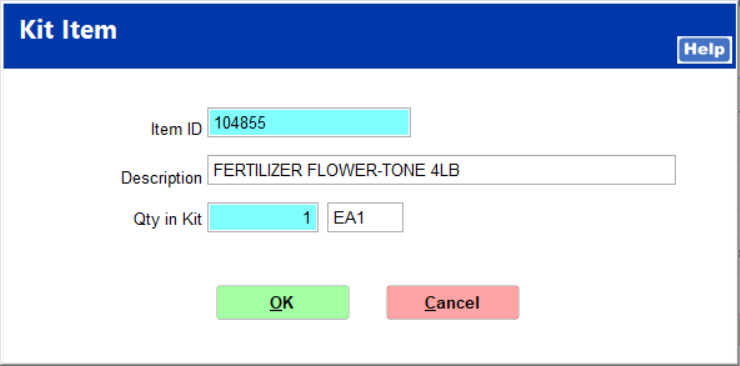
Enter the item ID, and press Enter to populate the remaining fields. Enter the quantity of the item to be included in the kit if it is more than one. Click OK.
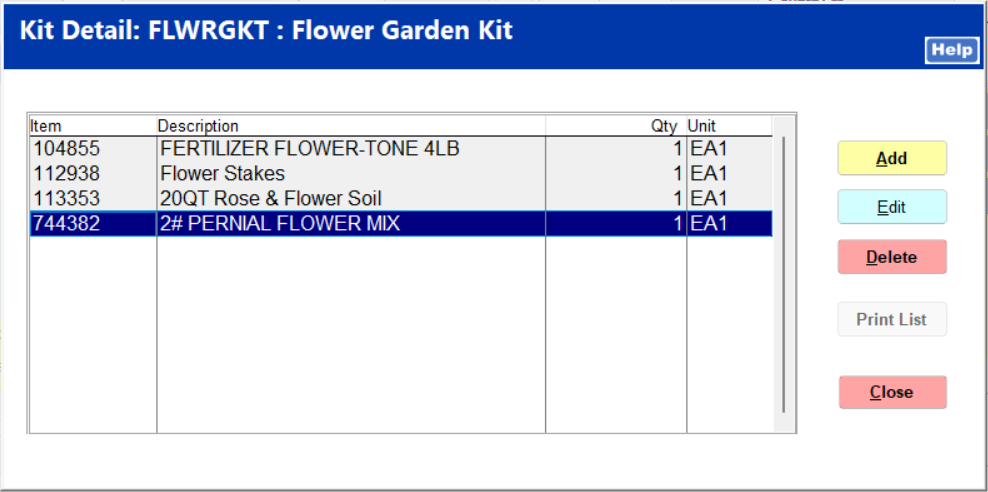
The item is added as a component. Continue adding each component item. You can edit or delete items at any time as necessary.
Click Close to return to the kit item inventory file.
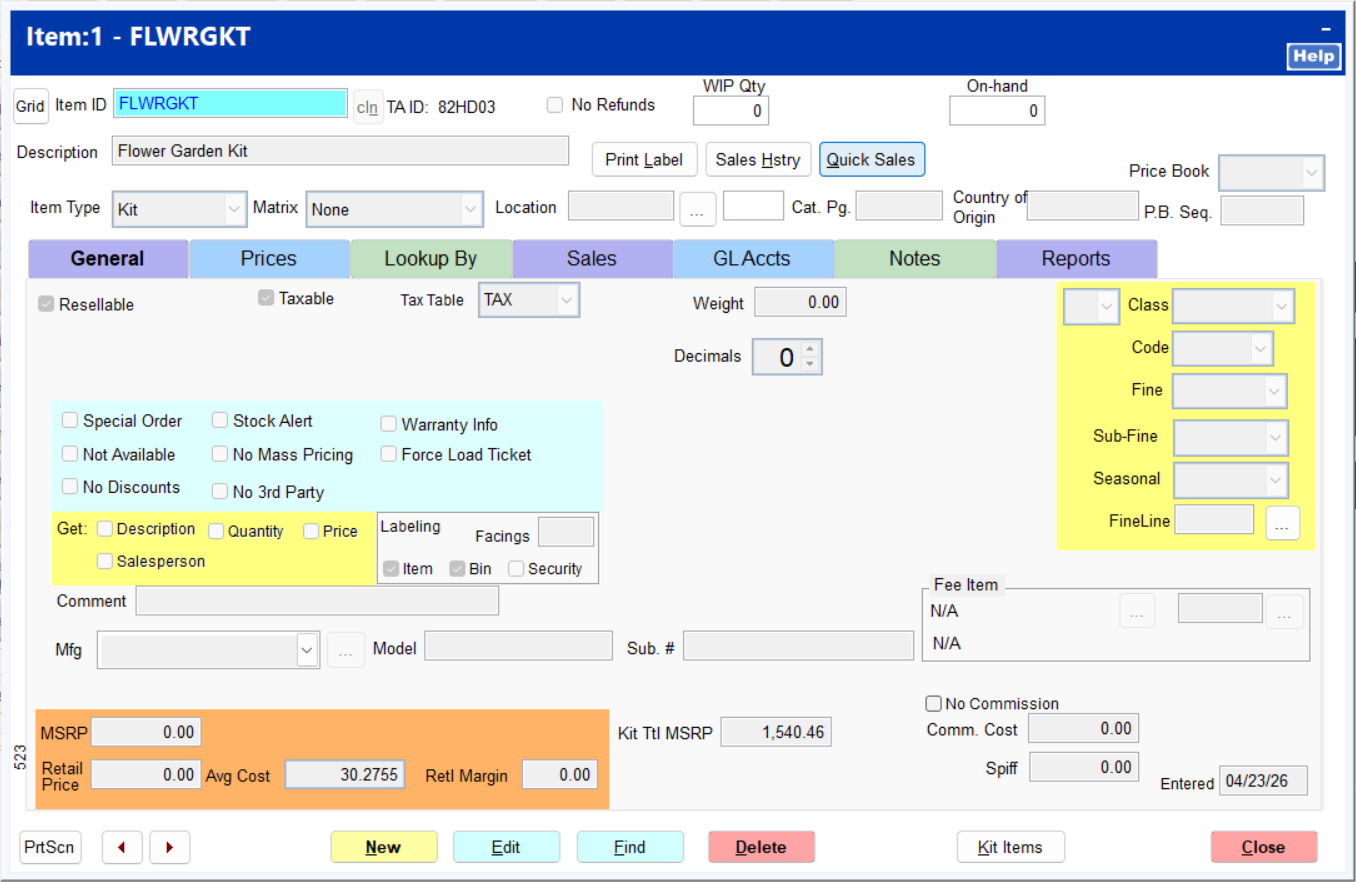
The total Average Cost of the component items included in the kit is updated on the general tab. Select Edit to modify the Retail Price of the kit offe
Click Edit to change the kit's retail price and make any other necessary changes before completing the item.