×
Menu
Index

Nickel Rounding

To accommodate the absence of pennies in circulation, your store may choose to use the Nickel Rounding feature for cash sales. 
 
Nickel Rounding
1

Math Rounding

1. Math Rounding
Select the N/A option to turn off Nickel Rounding at any point.
 
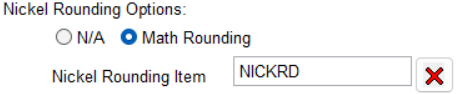
Selecting Math Rounding turns on nickel rounding using standard math rounding as follows:
Between $0.01-$0.02:  Round down to $0.00
Between $0.03-$0.04:  Round up to $0.05
Between $0.06-$0.07:  Round down to $0.05
Between $0.08-$0.09:  Round up to $0.10
For ease of setup, create the nickel rounding item per Step 2 before turning on Nickel Rounding.
2

Nickel Rounding Item

2. Nickel Rounding Item
While a nickel rounding item is not required to enable nickel rounding, it is recommended for transparency on invoicing and in reporting.
Prior to creating the nickel rounding item, you may want to create a non-taxed item type to apply to the item for reporting purposes.  For detailed information on creating a new non-taxed item type, see Non-Tax Types.
 
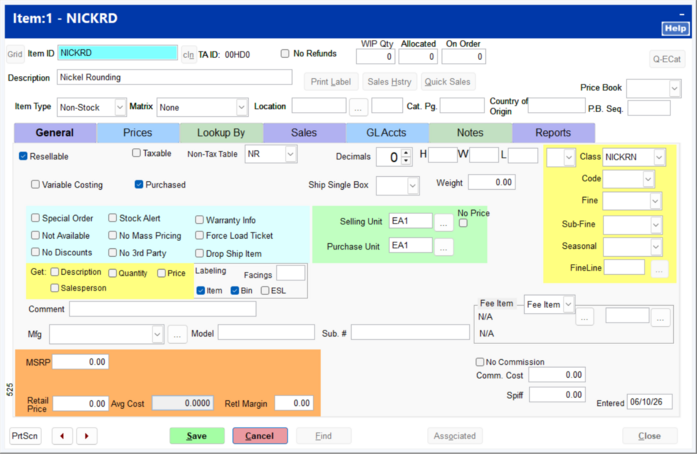
To add a nickel rounding item, create a new non-stock, non-taxed inventory item as shown. 
 
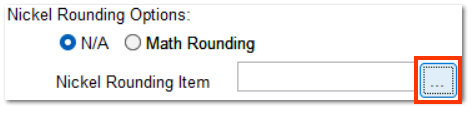
On the Company Setup | Payment Types page, click the ... button to the right of Nickel Rounding Item.
Nickel Rounding
 
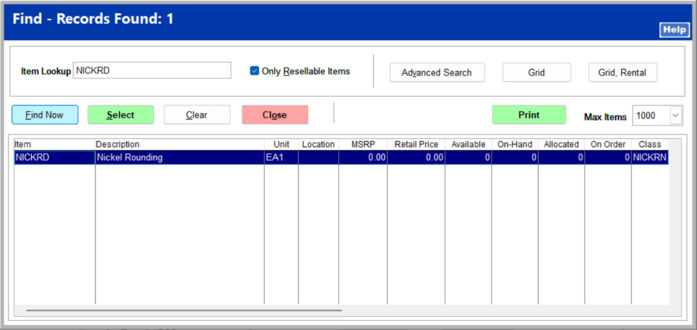
Enter the item ID in the Item Lookup field, and click Find Now.  Click on the correct item, and click Select.
 
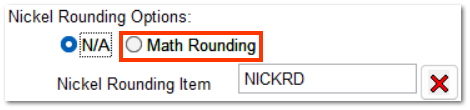
Once the nickel rounding item is added, select Math Rounding to turn on Nickel Rounding.
Nickel Rounding
 
Nickel Rounding is set up and ready to use.
 
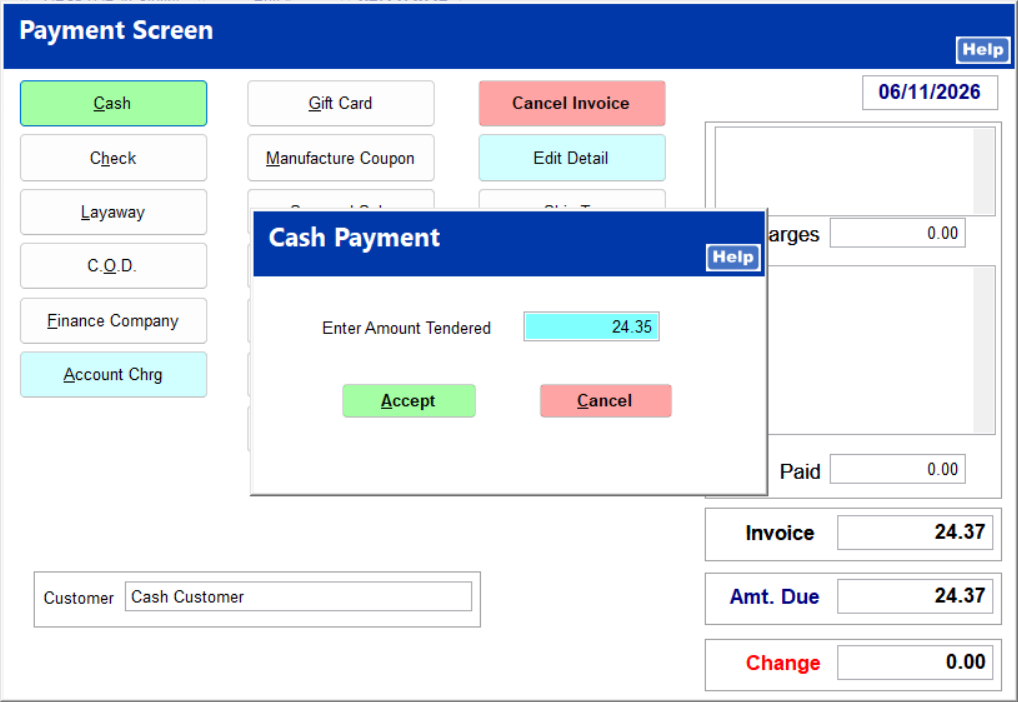
At Ring Sale, enter the customer's items and end the sale as you normal would.  Upon Cash as the payment type, the Cash Payment screen automatically shows the tendered amount rounded to the nearest nickel.
 
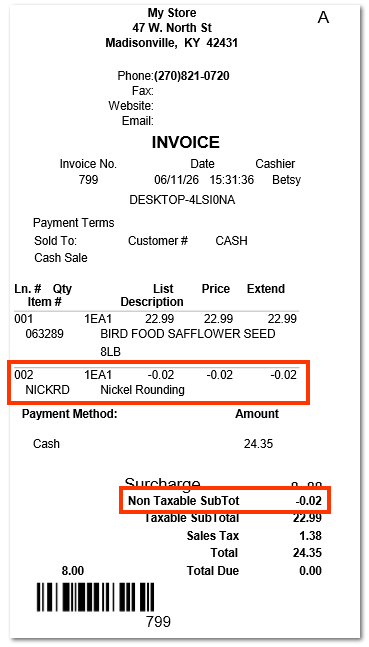
On the invoice, the amount rounded is listed as an item in the item listing.  The rounded amount is included in the Non-Taxable Subtotal of the Totals listing.

Nickel Rounding